How to Set Up and Run DeepSeek R1 Locally
Learn how to install, set up, and run DeepSeek-R1 locally with Ollama and build a simple RAG application.

Read Time
In this tutorial, I’ll guide you through running DeepSeek-R1 locally, step by step, and setting it up with Ollama. We’ll also build a simple RAG application that runs on your laptop using the R1 model, LangChain, and Gradio.
If you're looking for an overview of the R1 model, check out this DeepSeek-R1 article. For fine-tuning instructions, refer to this tutorial on fine-tuning DeepSeek-R1.
Why Run DeepSeek-R1 Locally?
Running DeepSeek-R1 on your machine gives you full control over execution without relying on external servers. Key benefits include:
Privacy & Security: Keeps all data on your system.
Uninterrupted Access: Avoids rate limits, downtime, and service disruptions.
Performance: Delivers faster responses by eliminating API latency.
Customization: Allows parameter adjustments, prompt fine-tuning, and local application integration.
Cost Efficiency: Removes API costs by running the model locally.
Offline Availability: Enables use without an internet connection once downloaded.
Setting Up DeepSeek-R1 Locally with Ollama
Ollama simplifies local LLM execution by managing model downloads, quantization, and deployment.
Step 1: Install Ollama
Download and install Ollama from the official website.
Once the download is complete, install the Ollama application as you would any other software.
Step 2: Download and Run DeepSeek-R1
Now, let's test the setup and download the model. Open a terminal and run the following command:
Model Variants
Ollama provides multiple versions of DeepSeek-R1, ranging from 1.5B to 671B parameters. The 671B model is the original DeepSeek-R1, while the smaller models are distilled versions based on Qwen and Llama architectures.
If your hardware cannot support the 671B model, you can run a smaller version by replacing X in the command below with the desired parameter size (1.5b, 7b, 8b, 14b, 32b, 70b, or 671b):
This flexibility allows you to use DeepSeek-R1 even without high-end hardware.
Step 3: Running DeepSeek-R1 in the Background
To keep DeepSeek-R1 running continuously and make it available via an API, start the Ollama server:
This will enable integration with other applications.
Using DeepSeek-R1 Locally
Step 1: Running Inference via CLI
Once the model is downloaded, you can interact with DeepSeek-R1 directly from the terminal.

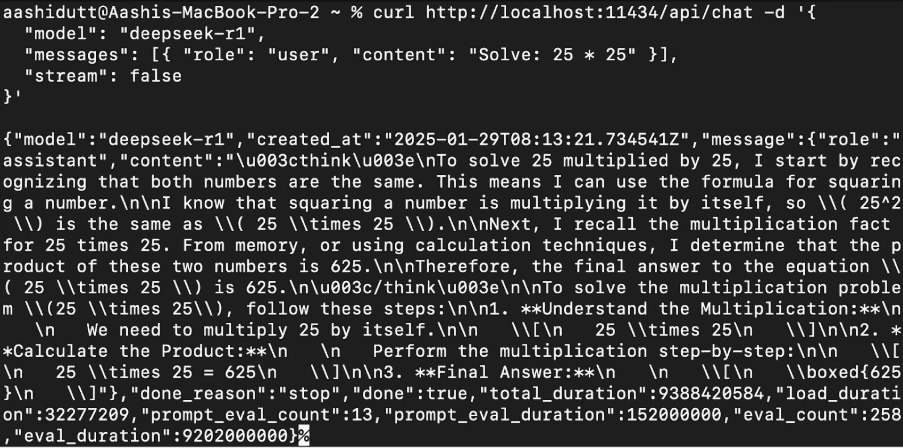
Step 2: Accessing DeepSeek-R1 via API
To integrate DeepSeek-R1 into applications, use the Ollama API with curl:
Note: curl is a command-line tool available on Linux and macOS that allows users to make HTTP requests directly from the terminal, making it useful for interacting with APIs.
Step 3: Accessing DeepSeek-R1 via Python
You can run Ollama in any integrated development environment (IDE) of your choice. First, install the Ollama Python package:
Once installed, use the following script to interact with the model:
The ollama.chat() function processes the user’s input as a conversational exchange with the model. The script then extracts and prints the model’s response.
Running DeepSeek-R1 Locally in VSCode
Running a Local Gradio App for RAG With DeepSeek-R1
Now, let's build a simple demo app using Gradio to query and analyze documents with DeepSeek-R1.
Step 1: Prerequisites
Before implementation, ensure you have the following tools and libraries installed:
Python 3.8+
LangChain – A framework for building LLM-powered applications, facilitating easy retrieval, reasoning, and tool integration.
ChromaDB – A high-performance vector database for efficient similarity searches and embedding storage.
Gradio – For creating a user-friendly web interface.
Install the necessary dependencies using:
Once installed, import the required libraries:
Step 2: Processing the Uploaded PDF
Now, let's process the uploaded PDF:
How it Works:
The process_pdf() function:
✔ Loads and prepares PDF content for retrieval-based answering.
✔ Extracts text using PyMuPDFLoader.
✔ Splits text into chunks using RecursiveCharacterTextSplitter.
✔ Generates vector embeddings using OllamaEmbeddings.
✔ Stores embeddings in a Chroma vector store for efficient retrieval.
Step 3: Combining Retrieved Document Chunks
After retrieving document chunks, we need to merge them for better readability:
Since retrieval-based models pull relevant excerpts rather than entire documents, this function ensures extracted content is properly formatted before being passed to DeepSeek-R1.
Step 4: Querying DeepSeek-R1 Using Ollama
Now, let’s set up DeepSeek-R1 for processing queries:
How it Works:
✔ Formats the user’s question and retrieved document context into a structured prompt.
✔ Sends the input to DeepSeek-R1 via ollama.chat().
✔ Processes the question in context and returns a relevant answer.
✔ Strips unnecessary thinking output using re.sub().
Step 5: The RAG Pipeline
Now, let’s build the full RAG pipeline:
How it Works:
✔ Searches the vector store using retriever.invoke(question).
✔ Retrieves and formats the most relevant document excerpts.
✔ Passes structured content to ollama_llm() for context-aware responses.
Step 6: Creating the Gradio Interface
Now, let's build a Gradio web interface to allow users to upload PDFs and ask questions:
How it Works:
✔ Checks if a PDF is uploaded.
✔ Processes the PDF using process_pdf() to extract text and generate embeddings.
✔ Retrieves relevant information using rag_chain().
✔ Sets up a Gradio interface with gr.Interface().
✔ Enables document-based Q&A in a web browser with interface.launch().
Author: